Title Templates
Title templates are implemented as <div> elements and defined by the IDs: headerTitleTemplate, titleTemplate and listTemplate.
<div data-hf-template="FormHeaderTitle">...</div>
<div data-hf-template="FormTitle">...</div>
<div data-hf-template="FormList">...</div>
Header-Title-Template (Form Page Header)
The header title template defines the elements of the header on the form page. The header title template is displayed centered at the top of the form page.
<!-- headerTitleTemplate - define the elements of the Form Item page header -->

<div data-hf-template="FormHeaderTitle">
    <span data-hf-control="Spacer">
        <span data-hf-control="ObserveField" data-hf-options="{ fieldId : 'tab1_datepicker' }"></span>
        <span class="spacer">|</span>
        <span data-hf-bind="innerHTML: data.PageTitle"></span>
        (<span data-hf-bind="innerHTML: data.FormTitle"></span>)
    </span>
</div>


Custom Form Item header
In case of no explicit definition inside your HTML template, the header shows the current page title and the form title:
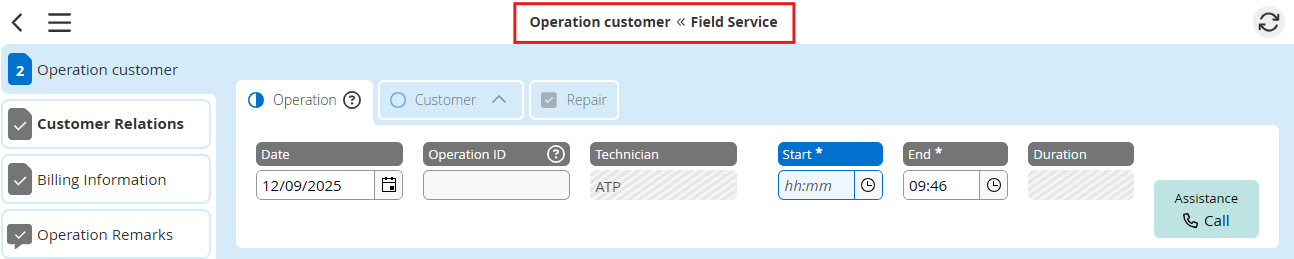

Default Form Item header
Title-Template (Form Title)
The titleTemplate defines the header section of the form page and contains the title of the Form Item.
<div data-hf-template="FormTitle">
    <h1>
        <span class="colon" data-hf-bind="innerHTML: data.FormTitle"></span>
    </h1>
    <h2 data-hf-control="Spacer">
        <span
            class="win-type-ellipsis"
            data-hf-control="ObserveField"
            data-hf-options="{
                fieldId: 'operation_date'
            }"
        ></span>

        <span class="spacer">|</span>

        <span
            class="win-type-ellipsis"
            data-hf-control="ObserveField"
            data-hf-options="{
                fieldId: 'operation_id'
            }"
        ></span>
    </h2>
</div>
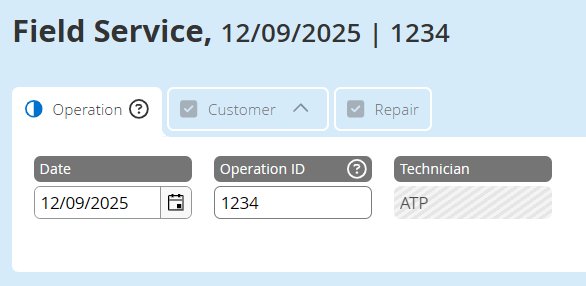
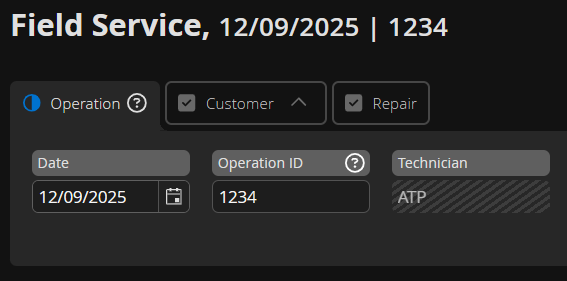
Header section
List-Template (List Entry)
The listTemplate defines the data of the list entry for the created form on the list page (where all forms of a Form Template are listed).
<div
    data-hf-template="FormList"
    data-hf-options="{
        img: 'base-80x80.svg',
        showMainImage: true
    }"
>
    <div class="row-1">
        <h3 data-hf-control="Spacer" class="win-type-ellipsis">
            <!-- place text here -->
        </h3>
    </div>
    <div class="row-2">
        <h4 data-hf-control="Spacer" class="win-type-ellipsis">
            <!-- place text here -->
        </h4>
    </div>
    <div class="row-3">
        <h5 data-hf-control="Spacer" class="win-type-ellipsis">
            <!-- place text here -->
        </h5>
    </div>
</div>
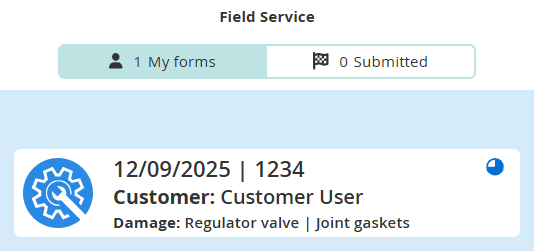
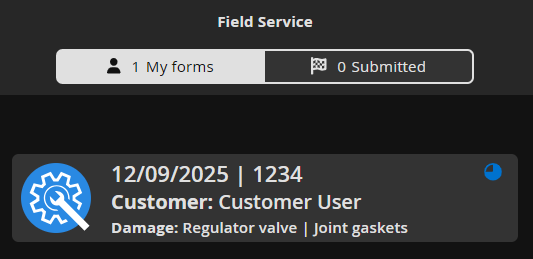
List data
Thumbnail image
<div
    data-hf-template="FormList"
    data-hf-options="{
        img: 'industry-listensymbol-repair-80x80.svg',
        imgDark: 'industry-listensymbol-repair-80x80-dark.svg',
        showMainImage: true,
        callback: HFFormDefinition.CustomCode.listTemplateCallback
    }"
>
    ...
</div>
The option img is used to display an icon as part of the list entry. Provide an image filename from the FormDefinition folder. It should be 80x80 pixels in size.
To provide an alternate image for dark themes, there is an additional option called imgDark.
The option showMainImage:true enables the display of a thumbnail of an attached picture as part of the list entry. Therefore the first picture of the form items picture gallery is used.
Data
The form title, the stage information and the Form Controls can be defined inside your Form Template by binding them via data-hf-bind. More information
The item entry at the list page can contain three lines of data (div class="row-1" ...).
These three rows of data are styled inside by headings (h3 to h5) to emphasis the importance of the information provided at the list page.
To include text before a field, utilize the data-hf-if attribute. In case the field is empty, you may utilize the data-hf-if-not attribute to specify the accompanying text.
<div class="row-1">
    <h3 data-hf-control="Spacer">
        <span data-hf-if="operation_date">Date</span>
        <span data-hf-if-not="operation_date">Date not available</span>
        <span
            data-hf-bind="textContent: listData.operation_date"
            data-hf-control="DateFormatter"
            data-hf-options="{
                    dateFormat: 'dd/MM/yyyy',
                    dateOnly: true
            }"
        ></span>
        <span class="spacer"> | </span>
        <span data-hf-bind="textContent: listData.operation_time_start_HFTime"></span>
        <span class="spacer"> | </span>
        <span data-hf-bind="textContent: listData.operation_id"></span>
    </h3>
</div>

<div class="row-2">
    <h4 data-hf-control="Spacer">
        Stage <span data-hf-bind="textContent: data.stage.id"></span>:
        <span data-hf-bind="textContent: data.stage.label"></span>
    </h4>
</div>

<div class="row-3">
    <h5 data-hf-control="Spacer">
        <strong>Damage: </strong>
        <span data-hf-bind="textContent: listData.schaden_fuellventil_gebrochen_HFValue"></span>
        <span class="spacer"> | </span>
        <span data-hf-bind="textContent: listData.schaden_dichtungen_poroes_HFValue"></span>
        <span class="spacer"> | </span>
        <span data-hf-bind="textContent: listData.schaden_druckzylinder_defekt_HFValue"></span>
        <span class="spacer"> | </span>
        <span data-hf-bind="textContent: listData.schaden_rueckluftrohr_defekt_HFValue"></span>
        <span class="spacer"> | </span>
        <span data-hf-bind="textContent: listData.schaden_elektronik_HFValue"></span>
    </h5>
</div>
Use the control "DateFormatter" to display and format dates provided inside your Form Item.
Callback
With the callback-option you can define a function in Custom Code that is called after the list template is rendered for the Form Item. The Form Item element and the data object of the Form Item are provided as arguments to the callback function. Return a Promise!
This allows the form designer - for example - to style the form items depending on certain values in the list data object:
<div
    data-hf-template="FormList"
    data-hf-options="{
        img: 'industry-listensymbol-repair-80x80.svg',
        showMainImage: true,
        callback: HFFormDefinition.CustomCode.listTemplateCallback
    }"
>
    ...
</div>
export function listTemplateCallback(formItemCt: HTMLElement, formItemData: { listData: any; data: any }) {
    if (formItemData.listData.someFieldKey === '1234') {
        $(formItemCt).css('border', '2px solid orange');
    }
    return Promise.resolve();
}
Icons
Icons are displayed at the right side of the list entry. They are displayed by the system and can not be defined by the user.
The possible icons are:
- ,, , , : Form progress. Calculated by filled required fields.
- : Form is approved.
- : Form is syncing or form has not synced to the server yet.
- : Form is marked for deletion and will be removed at the next synchronization.
- : Form has an unread feedback attached.
- : Form has status
Group. - : Form had sync conflict. This icon indicates the form as a copy of the original form.
- : Form has a sync error. Clicking on this entry 5 times creates a copy of the form.
- : Extended read form. This icon indicates the form as an extended read form if the feature is active and the user is allowed to read.
Data handling
The defined titles inside your HTML file (data.VariableName) can be displayed by using the attribute data-hf-bind to the HTML-tag using the binding property innerHTML.
<span data-hf-bind="innerHTML: data.FormTitle"></span>
The current stage of the Form Item can be displayed by using the stage.id and/or the stage.label, both defined in the form's stages.json.
<span data-hf-bind="textContent: data.stage.id"></span> <span data-hf-bind="textContent: data.stage.label"></span>
FormControl values can be bound by binding the listData object to an element.
<span data-hf-bind="textContent: listData.operation_id"></span>
Set the data-hf-option list to true if you want the data connected with this control to be a sorting/filtering/grouping option on the listpage or to show up in Admin UI listings.
Furthermore the data-hf-controls Spacer, ObserveField and DateFormatter are used to process and format the data.
Spacer
Formats the output of the values inside this HTML element. If there are no values provided, this control removes unnecessary separators (e.g. "|"). Separators should be defined with a span-element and marked with the class spacer.
<h2 data-hf-control="Spacer">
    <span
        class="win-type-ellipsis"
        data-hf-control="ObserveField"
        data-hf-options="{
            fieldId: 'operation_date'
        }"
    ></span>

    <span class="spacer">|</span>

    <span
        class="win-type-ellipsis"
        data-hf-control="ObserveField"
        data-hf-options="{
            fieldId: 'operation_id'
        }"
    ></span>
</h2>
ObserveField
The ObserveField control observes within the form defined controls and will be updated by any changes to these form elements. For instance, in the example above, when the "Operation ID" is filled in, the value of this field will be displayed and updated immediately in the title.
dateFormat
dateFormat: 'dd-MM-yyyy'stringWe recommend that you only use these controls to be observed:
| Control | Reference-ID | Observed value |
|---|---|---|
| TextField | <id> | input value |
| Checkbox | <id>_HFValue | value of the value attribute |
| RadioBox | <name>_HFValue | value of the value attribute |
| ComboBox | <id> | id of the selected value |
<id>_HFComboText | text-value of the selected value | |
| DropDownList | <id> | id of the selected value |
<id>_HFDropDownListText | text-value of the selected value | |
| SelectBox: | <id> | id of the selected value |
<id>_HFSelectText | text-value of the selected value | |
| TimePicker | <id> | selected time/content of the control in the predefined format |
| DatePicker | <id> | selected date/content of the control in the predefined format |
Usable in "Header-Title-Template (Form Page Header)" and "Title-Template (Form Title)"
DateFormatter
<span
    data-hf-bind="textContent: listData.operation_date"
    data-hf-control="DateFormatter"
    data-hf-options="{
        dateFormat: 'dd/MM/yyyy',
        dateOnly: true
    }"
></span>
dateFormat
dateFormat: 'dd-MM-yyyy'stringddd dd MM [yy]timeFormat
timeFormat: 'hh:mm tt'stringUsable in "List-Template (List Entry)"