Integrate Maps
Admin UI and Form Template Settings
Admin UI Settings
The first step is to ensure that the App function flag for enabling the map feature is activated in the Form Template settings within the Admin UI. Without this flag, maps will not be available in the Form Templates.
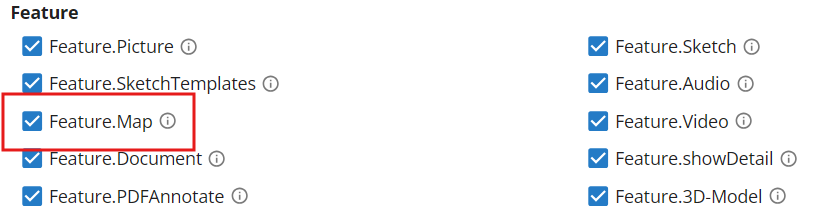
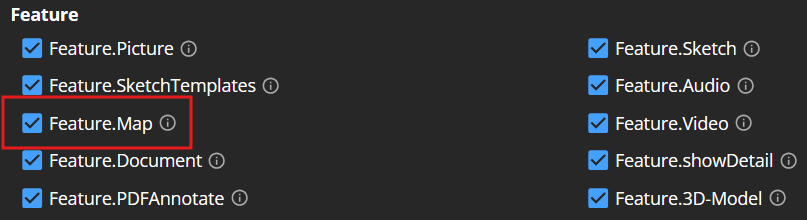
Next, define the maps that will be globally available across all Form Templates. These settings are configured in the Admin UI under Core Server > App Settings.


For other supported map libraries, such as MapLibreGL and OpenLayers, you can configure their availability as follows:
- Default Maps: If you want that a specific map is available automatically in all of your Form Templates without further doing, use the prefix
hfMaps-followed by a unique name (e.g., hfMaps-MapLibreBaseMap). If no specific map settings are applied in the Form Template, this map will be displayed automatically (assuming the map feature flag is enabled). - Optional Maps: If you do not want a map to appear by default in the Form Templates, omit the
hfMaps-prefix. Use any unique name for the map (e.g., MapLibreBaseMap). This map will then only be available in a Form Template if it is explicitly configured in the Form Template VariableFormSettings(see below).
For detailed instructions on configuring non-Google Maps options, refer to the sections for MapLibreGL and OpenLayers.
Form Template Settings
If you prefer to override the default maps defined in the Admin UI or want to include maps that are not globally available, you can specify them in the Form Template settings. Use the template variableMediaSettings and the
attribute hf-registeredMaps to define a comma-separated list of map IDs. These IDs correspond to the App setting IDs
configured in the Admin UI.
Only the specified maps will be available in your Form Template, overriding any default maps.
<var data-hf-name="MediaSettings" data-hf-registerMaps="googleMapsApiKey,hfMap-MapLibreBaseMap,Basemap-OpenLayers">
</var>
In this example, three maps are included in the Form Template:
- Google Maps (using the googleMapsApiKey),
- MapLibreGL Map (with the name MapLibreBaseMap),
- OpenLayers Map (with the name Basemap-OpenLayers).
Integrate Google Maps
To integrate Google Maps into your Form Templates, simply set the Google Maps API key in the App Settings section of the Admin UI using the googleMapsApiKey.
Integrate Custom Maps with MapLibreGL and OpenLayers
You can select one of two supported map providers — MapLibreGL or OpenLayers — and configure the map features through a JSON configuration that you define the Admin UI as described above.-
MapLibreGL: MapLibreGL is an open-source mapping library based on Mapbox GL JS. It enables high-performance, interactive maps rendered in a browser using WebGL. It is ideal for modern, visually rich web applications and supports a wide range of map styles and customizations.
-
OpenLayers: OpenLayers is a robust and versatile open-source JavaScript library for displaying maps in web browsers. It supports a wide variety of mapping formats and services, making it an excellent choice for applications with complex geospatial requirements.
JSON Configuration Overview
Below is the structure of the configuration JSON used to define map settings:{
"provider": "[MapLibreGL | OpenLayers]",
"style?": "https://url-to-map-style",
"capabilities?": { // only for OpenLayers maps; WMTS cappabilities
"url": "https://url-to-wmts-xml",
"layers": [
{
"base": "[Identifier of the base layer]",
"baseHiDPI": "[Identifier of an alternative high dpi base layer]",
"overlays": [
{
"id": "[additional layer identifier]",
"opacity": 0.8,
}
],
"label": "[Label for the layer]",
},
{
"base": "ortholayer", // Identifier of the base layer
"overlays": [
{
"id": "streetname-layer", // Identifier of the additional layer
"opacity": 0.8, // opacity of the layer
},
],
"label": "Ortho-Satellite",
},
],
},
"mapConfig?": {
"style": "https://url-to-styles-file", // only for MapLibre maps
"styles?": [
{
"id": "street",
"style": "https://url-to-styles-file",
"label": "Street View",
"default": true
},{
"id": "satellite",
"label": "Satellite View",
"style": "https://url-to-another-styles-file"
}
], // only for MapLibre maps
"center": [15.439504, 47.070713],
"zoom": 14,
"pitch": 61,
"bearing": 172
},
"features?": {
"setMarkers": true,
"setMarkers": {
"maxMarkers": 1,
"callback": "HFFormdefinition.MLMaps.onMarkerSet"
},
"toggleLayerVisibility": true,
"directions": true,
"drawing": true
},
"controls?": {
"geolocation": true,
"mapNavigation": true
},
"addressMarkers?": [
"Alexanderplatz 1, 10178 Berlin, Germany",
"Brandenburger Tor, Pariser Platz, 10117 Berlin, Germany",
"[... more addresses ...]"
],
"onLoad?": "HFFormdefinition.CustomCode.mapOnLoad"
}
If for OpenLayers maps in the capabilities section more than one layer is defined, the user can switch between the layers in the apps map.
If in MapLibre maps more than one view should be available, define the styles array (instead of the style-property) in the mapConfig section.
Main MapLibreGL and OpenLayers Options
mapConfig - required
mapConfig: {
style: "mapbox://styles/mapbox/streets-v11",
center: [15.439504, 47.070713],
zoom: 14,
pitch: 61,
bearing: 172
}objectprovider - required
provider: "MapLibreGL"stringaddressMarkers
addressMarkers: [
"Alexanderplatz 1, 10178 Berlin, Germany",
"Brandenburger Tor, Pariser Platz, 10117 Berlin, Germany"
]array of stringscapabilities
capabilities: {
url: "https://url-to-wmts-xml",
hiDPILayer: "bmaphidp",
defaultLayer: "basemap"
}objectcontrols
controls: {
geolocation: true,
mapNavigation: true
}objectfeatures
features: {
setMarkers: {
maxMarkers: 1,
callback: "HFFormdefinition.MLMaps.onMarkerSet"
},
toggleLayerVisibility: true,
directions: true,
drawing: true
}objectonLoad
onLoad: "HFFormdefinition.CustomCode.mapOnLoad"string (function name)style
style: "https://api.maptiler.com/maps/topo-v2/style.json?key=XYZ"string (URL)styles
[
{"id": "street", "style": "https://style-url-1.json", "label": "Street View", "default": true},
{"id": "street", "style": "https://style-url-2.json", "label": "Street View", "default": true}]array of objectsOpenLayers Capabilities Options
url - required
url: "https://url-to-wmts-xmlstring (URL)layers
{"base":"ortholayer","overlays":[{"id":"streetname-layer","opacity":0.8}],"label":"Ortho-Satellite"}array of objectsMap Configuration Options
center - required
center: [15.439504, 47.070713]array of numbersstyle - required
style: "mapbox://styles/mapbox/streets-v11"string (URL)Map Features Options
directions
directions: truebooleansetMarkers
setMarkers: {
maxMarkers: 1,
callback: "HFFormdefinition.MLMaps.onMarkerSet"
}boolean or objectsetMarkers.callback
callback: "HFFormdefinition.MLMaps.onMarkerSet"string (function name)toggleLayerVisibility
toggleLayerVisibility: trueboolean